When I first started building out Veeam Backup for Microsoft 365 at scale, I made the same assumption a lot of engineers do: stand up the server, authenticate against the tenant, create a backup job, point it at a repository, and you’re done. Job design felt like a formality — a few clicks before you got to the “real” work.
I was wrong about that. And it cost me more remediation hours than I’d like to admit.
Don’t get me wrong — for small environments it can be that simple. But once you start to get more than 500 seats, large SharePoint sites, bad user decommissioning processes, or run it in a hosted or service provider environment, this changes very quickly.
This post is about the journey I went through designing VB365 backup jobs in a managed services environment. It’s part lessons learned, part design pattern — and if you’re managing M365 backup for a larger M365 tenancy or multiple tenants, I hope it saves you some of the headaches I worked through the hard way.
Where It Started: One Job to Rule Them All
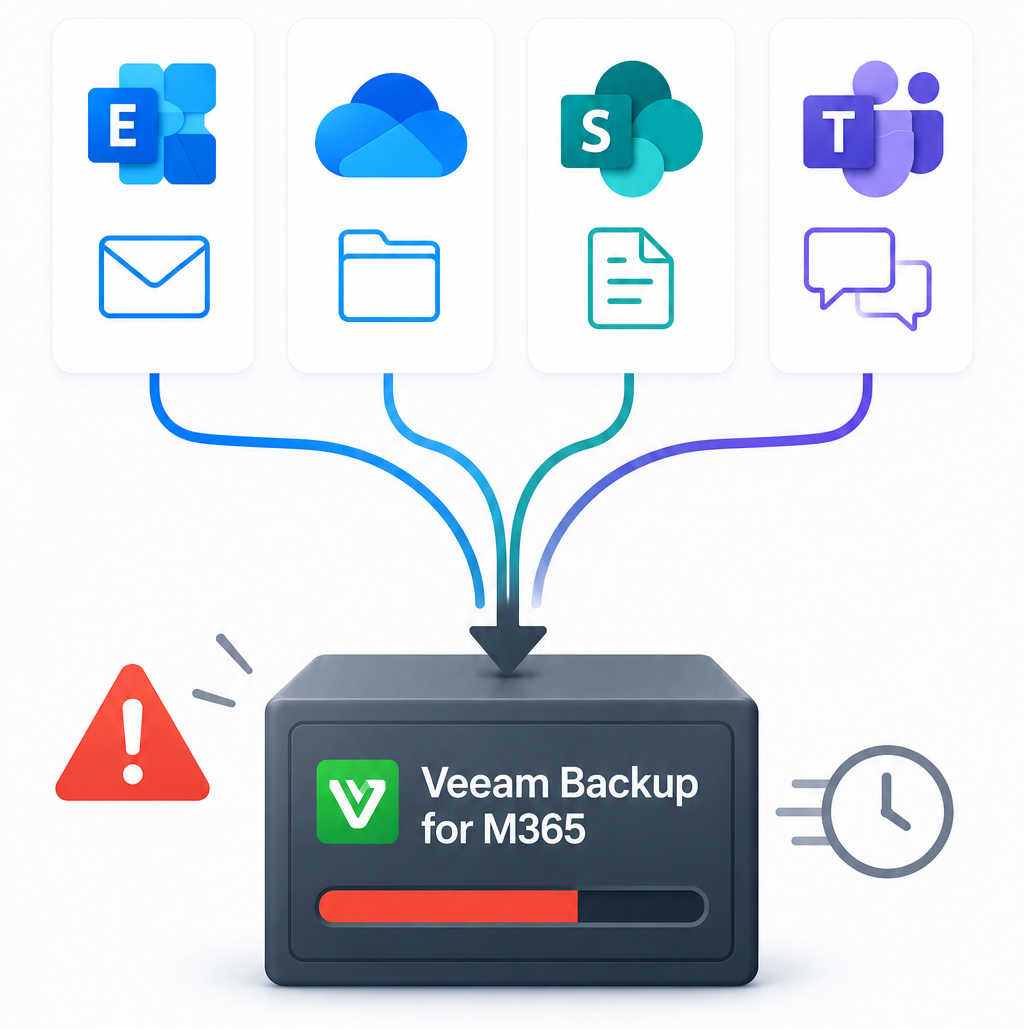
The temptation with VB365 is to keep things simple. Create one job, back up the entire organisation, and call it a day. For a small tenant with 30 users, that might genuinely be fine. But once you start scaling — multiple tenants, hundreds of users per tenant, a mix of Exchange, OneDrive, SharePoint, and Teams — a single monolithic job becomes a liability.
The problems aren’t always obvious at first. Jobs start running long. A single slow OneDrive item holds up everything else. An issue with one workload causes the entire job to report a warning state, making it hard to tell at a glance what’s actually healthy. Or worse yet, one failure with a single file and the entire job stops — leaving no way to skip the failed item, or even see what was remaining.
The design decisions you make at the start set the floor for every operational headache you’ll have later.
How Veeam Backup for M365 Works, And Why It Shapes Everything
Before getting into job design specifics, it’s worth spending a moment on how VB365 actually operates under the hood — because a lot of the design decisions I’ll cover later are a direct response to its architecture.
VB365 appears to have been designed around Microsoft’s own guidance on M365 tenant sizing and API throttling limits. As one of the earlier products to tackle M365 backup seriously, it takes a very item-level approach to accessing Microsoft 365 data — meaning it enumerates and processes individual items (emails, files, list items) rather than working at a higher level of abstraction. That’s great for restore granularity, but it means the product is inherently sensitive to the volume and complexity of what’s in a tenant. Large mailboxes, deeply nested SharePoint libraries, and OneDrive drives with tens of thousands of files all translate directly into longer processing times and more API calls.
It is also worth noting that API throttling — which Microsoft made significantly more aggressive in April 2026 — works by throttling connections that hit the M365 APIs based on high request rates, many API threads, broad API queries, polling loops, retries, multiple apps in a tenant, peak hour service loads, and workload limits. All of which greatly impacts M365 backups, and is yet another reason why how you scope your jobs matters.
On the repository side, VB365 used to only use Jet databases to track backup metadata at a repository level. Jet has well-documented size and concurrency limitations, and in practice this means repository design isn’t just a storage question — it’s an architectural one. Large repositories with heavy concurrent job activity can start to show performance degradation, and in extreme cases, database corruption. How you split your jobs and repositories directly influences how hard you’re hammering those databases, which is another reason monolithic jobs that cover an entire tenant are a problem at scale.
One more thing worth knowing: VB365 job logs don’t display item or object summaries when a session processes more than 1,000 objects. If you’re used to checking job session logs in the backup console to verify what was backed up, you’ll hit a wall here. Past that threshold the log essentially stops being useful as an audit tool for individual items, which has implications for how you validate backup coverage and troubleshoot issues. Smaller, well-scoped jobs keep you inside that visibility window where it matters.

Separating Workloads: Exchange, OneDrive, SharePoint and Teams
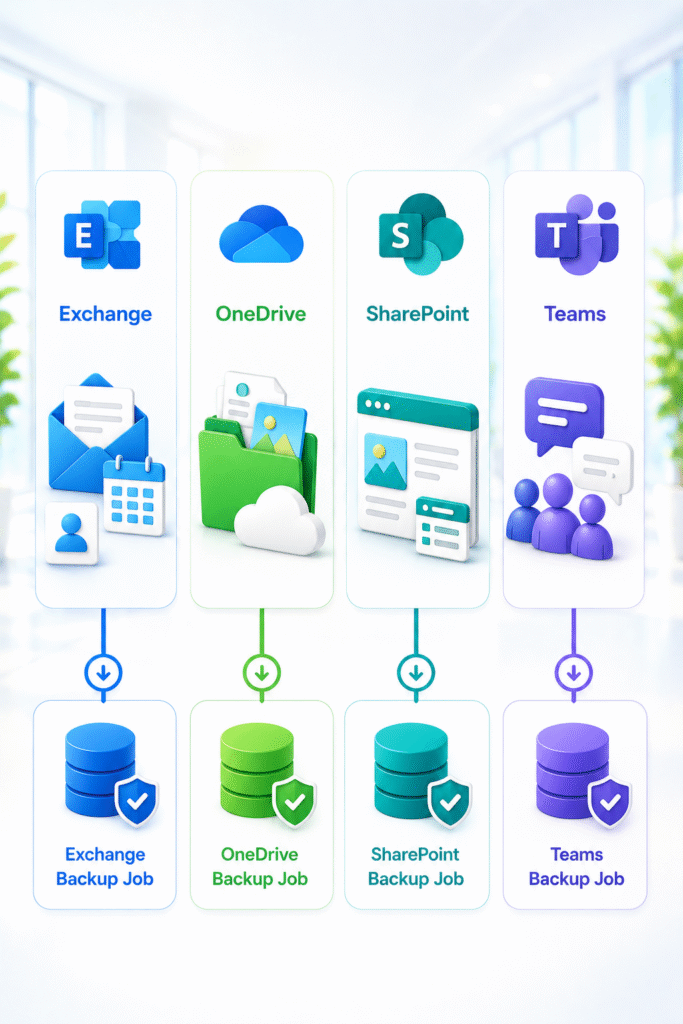
The first meaningful design decision I landed on was separating backup jobs by workload type: Exchange on its own, OneDrive on its own, SharePoint and Teams on their own.
This isn’t just organisational tidiness. Each workload has genuinely different backup behaviour, different failure modes, and different restore patterns.
Exchange tends to be the most reliable (unlike OneDrive and SharePoint) based on my experience. It backs up at a reasonable speed, fails predictably when there’s an issue, and restores are well-understood. Keeping it in its own job means that if OneDrive or SharePoint is having a bad day — and they do have bad days — your Exchange backups aren’t dragged into the noise.
OneDrive is where things get interesting. File-level backup means you’re at the mercy of whatever is sitting in those drives. Large files, deeply nested folder structures, files with unusual permissions, files in a corrupted state, even files marked as having a virus — they all show up eventually. Additionally, as OneDrives are owned by users unlike SharePoint sites and function differently, it makes sense to isolate OneDrive jobs so you can monitor and tune them independently without Exchange or SharePoint clouding the picture.
SharePoint and Teams I send to the same repository, since Teams backup jobs cover a lot of data that lives in SharePoint. Yes, Teams backups also cover Teams mailboxes — but in my experience this is generally less data than what sits in SharePoint, and based on Veeam’s own best practice guidance, that appears to be their assumption too.
SharePoint jobs tend to be the most complex because site structures vary enormously between tenants. Some clients have tightly managed SharePoint environments; others have sprawl that’s been accumulating for years. It’s also worth noting that SharePoint backup job scope includes personal sites, which can add significant volume that’s easy to overlook when scoping a job. Treating SharePoint as its own workload — and splitting it across multiple jobs where needed — gives you the flexibility to handle per-client quirks without impacting other workloads.
Splitting Jobs with Entra ID Dynamic Groups
Once you’ve separated by workload, the next question is: what do you do when a single workload job gets too large? VB365 has a hard ceiling of 1,000 objects per job before session metadata logs stop displaying in the console — but in practice, performance degradation sets in well before that. In my experience, Exchange jobs start showing strain somewhere between 400 and 700 mailboxes depending on mailbox sizes. OneDrive tends to perform better due to having fewer items per object. And don’t forget — the longer a job runs, the more API throttling you will experience. Job size and job duration are directly linked, and throttling compounds both.
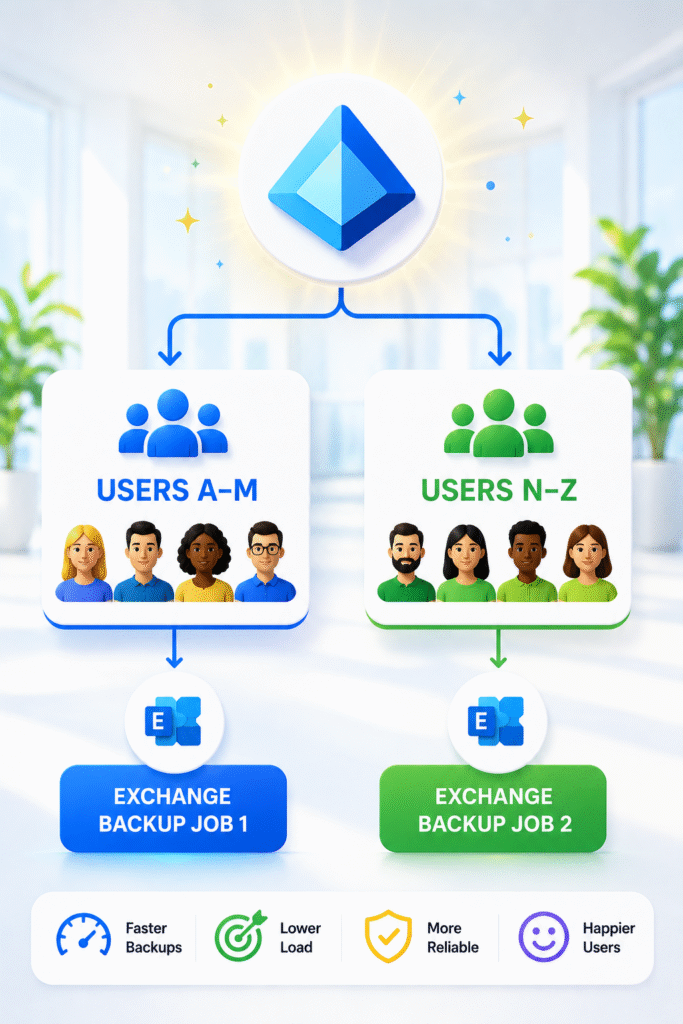
The answer I landed on is Entra ID dynamic groups — and before you ask, no, you cannot use a dynamic distribution group. VB365 only supports Entra ID security groups. Rather than manually curating lists of users per job, Entra ID dynamic groups allow you to define membership rules based on attributes already present in the directory — ObjectID, department, location, license, a custom extension attribute, whatever makes sense for the client. VB365 then resolves that group membership at backup time, so as users are added or removed from the tenant, the jobs self-adjust.
For user-based workloads (Exchange, OneDrive), I previously used Veeam’s Best Practice approach and split by objectId range using regex membership rules. It’s really not the prettiest approach operationally (as you will read further down), but it scales reasonably well and the distribution stays relatively even as the tenant grows.Group 1 (50%): (user.objectId -match "^[0-7].")
Group 2 (50%): (user.objectId -match "^[8-9a-f].")
How do I size the groups and determine the number of groups? It depends, but I follow the ObjectID samples provided by Veeam in their VB365 best practice guide. In short, ObjectIDs use hex values (0–9 and a–f), and with regex you can cut them using multiple starting values — meaning the number of groups will always be determined by a power of two. If that sounds like too much, there’s a community-built GitHub script (VBO-CreateDynamicGroups) that automates this — though it creates 64 groups, which I’ve never needed for any client I’ve worked with.
My approach is to aim for cuts of 250–500 users per job, which leaves plenty of room for growth before a review is needed — and in practice, that review almost never comes. But the key rule of thumb: keep jobs well under 1,000 objects — 750 is the number I aim for. If a tenant is approaching that threshold, split the job before it hits a wall, not after.
The Pitfalls of Entra ID Groups

There is a major downside to relying on dynamic groups for user-based workloads: not all Entra ID users have a mailbox or OneDrive — service accounts being the obvious example. This was the first thing we ran into and dealt with for a while, especially as it isn’t easy to filter on licenses. So for a long time we just excluded users who didn’t have a mailbox. But this got unwieldy quickly, especially for larger organisations.
These days I split based on ObjectID and active license — which doesn’t exist as a single attribute, so I filter on licenses associated with Exchange and OneDrive. This scales a bit more unevenly, but operationally is easier to manage.
The license approach works well for active users — but it introduces a new blind spot.
Not all mailboxes have a license.
Shared mailboxes are the obvious example. For most clients, shared mailboxes contain important data. Finance@ addresses, support@ inboxes, reception mailboxes — these are often the mailboxes that matter most when something goes wrong and someone is standing over your shoulder asking for a restore. Miss these in your job scope and they will quickly and silently disappear from coverage — a gap that bites you hard and fast if you don’t account for it explicitly.
My approach is to create a dedicated non-user mailbox job per tenant. I scope all organisation mailboxes but exclude the Entra ID dynamic groups already covered by the user backup jobs — call it a catch-all. It’s normally a smaller job for the number of objects, so often runs reliably, and it means I can confirm non-user mailboxes are covered. But for heavy or large shared mailbox usage, they can also be one to watch for throttling.
The SharePoint and Teams Scaling Mess
For SharePoint, dynamic groups based on users don’t really apply — you’re dealing with sites, not people. My approach here is layered and depends on testing and monitoring job size, runtime, and throttling.
Firstly, I used to split SharePoint Personal Sites out from normal SharePoint site backup jobs. These days I don’t even back them up. The reason is simple — they don’t get used. Look at your org or your customers and tell me who actually uses their Personal Site, other than for OneDrive, which already has its own dedicated job. There’s just no need to back this up, so I’d rather reduce the time and performance impact during backups by excluding them. Veeam agree with this thinking and updated their VB365 best practice guide to advise checking whether Personal Sites need to be protected at all. I take the approach of not including them by default — customers need to opt in to back up SharePoint Personal Sites, and even then we try to only back up the required user sites.
Secondly, I create dedicated jobs for any large SharePoint sites over 1TB. The bigger the site or the more files it contains, the more API usage your backup app is generating and the greater the risk and impact of throttling. After scoping large sites into their own jobs, I monitor runtime closely and check logs for throttling. If it’s still appearing, I manually group remaining sites into jobs based on the client’s SharePoint structure — business unit, department, whatever logical grouping fits.
For Teams, the first thing I do is ensure it has its own job. My provisioning team love to include it with the SharePoint job as it reduces the risk of SharePoint and Teams clashing over the same SharePoint sites — but if throttling starts appearing, splitting Teams out is the first and easiest move. If that’s not enough, Teams Chat gets its own dedicated job. Generally this resolves it — but with Microsoft’s throttling getting more aggressive, this is an area I’m watching closely and may need to revisit with further splitting in future. If I make any changes here I’ll update this post.

Scaling This for MSP / Multi-Tenant Environments
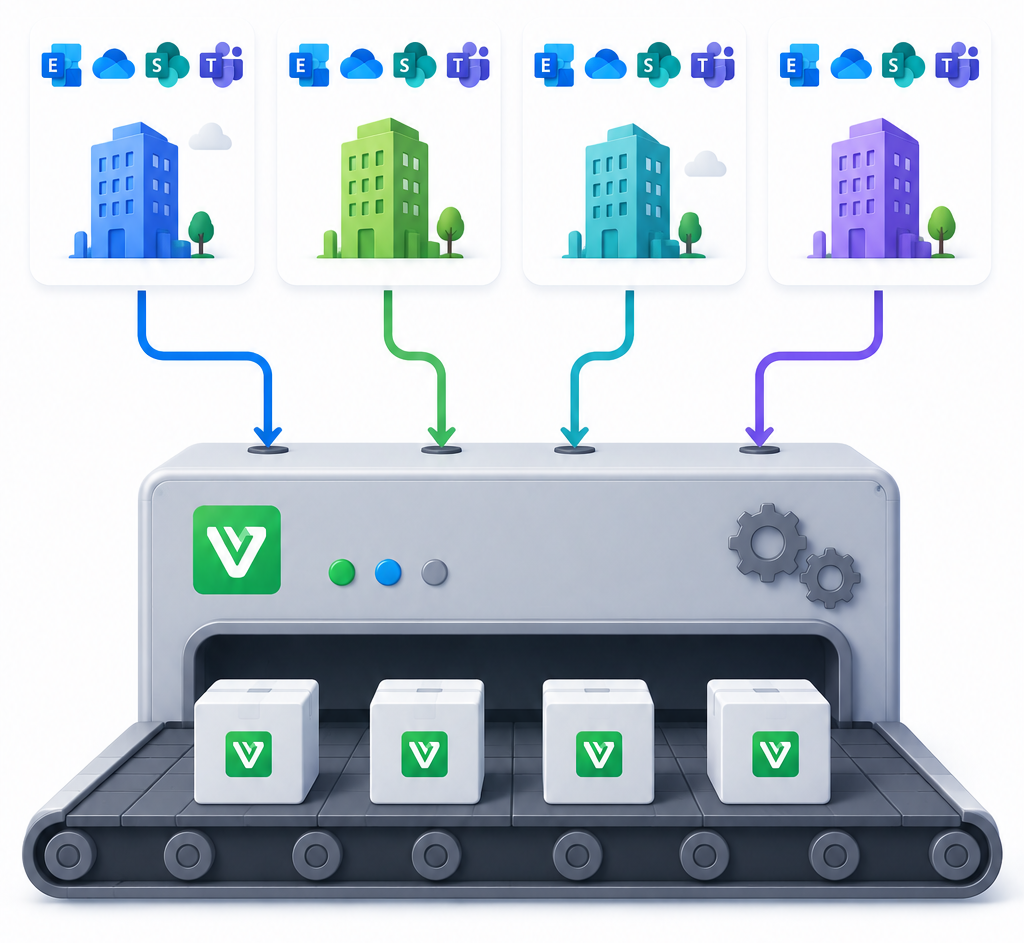
Running VB365 as part of a managed service means all of the above has to be repeatable, auditable, and operationally maintainable across a fleet of tenants. A job design that works beautifully for one client is useless if you can’t apply it consistently.
A few things that have made this workable at scale:
Naming conventions matter more than you think. If your jobs are named consistently — something like [ClientCode] – Exchange – Users [A-M] or [ClientCode] – Exchange – Shared Mailboxes — you can parse job status across dozens of tenants at a glance without needing to open each one to understand what it covers. Inconsistent naming is a quiet operational tax that compounds over time.
Document the design for each tenant. Not a novel or an as-built — just enough to know what Entra ID groups feed which jobs and the condition expression used, where the split points are, and whether there are any non-standard configurations. When something breaks at 2am and someone else is on call, that documentation is the difference between a quick fix and a long night — or in my case, a very early phone call.
VSPC (Veeam Service Provider Console) is your monitoring layer, but it only surfaces problems you’ve configured it to find. Make sure your alert thresholds are set appropriately and that job-level health is being reviewed (e.g. max job duration), not just infrastructure-level status.
Use the VB365 PowerShell module for anything you’re doing more than once. Deploying a new client, building out their job structure, checking what’s configured — all of this is scriptable, and in a managed services context, consistency through automation beats manual click-through every time.
The Takeaway
Job design in Veeam Backup for M365 isn’t a checkbox. It’s an architectural decision that shapes how well your backup environment performs, how easy it is to operate day-to-day, and how quickly you can respond when something goes wrong.
The separation of workloads, the use of dynamic groups for scale, the explicit handling of non-user mailboxes, the naming and documentation discipline — none of these are complicated ideas individually. But doing all of them consistently, across every tenant, from day one, is what separates a backup environment that’s genuinely well-designed from one that just happens to be running.
If you’re in the early stages of building out VB365 for a new client, spend the extra time getting the job design right. Your future self — and whoever is on call the night something goes wrong — will thank you.
Have a different approach to VB365 job design? I’d be interested to hear how others are handling this — especially around SharePoint splitting and non-user object coverage. Drop a comment or reach out on LinkedIn.